
Workday default compensation saves time and prevents errors by pre-filling compensation details when you hire someone or change their job. Done well, nobody retypes a grade or hunts for the right plan. Done badly, people see the wrong defaults, or none at all, and the support tickets start.
This post explains how default compensation works, where defaults come from, which source wins when they conflict, and how to set it up. It is based on Workday’s published compensation course material, and I have added the points I see matter most in real projects.
What default compensation does
When a staffing or compensation transaction starts, Workday can fill in compensation components automatically. Users still have room to adjust amounts where your security allows it, so defaults guide the transaction without locking it down.
Components that can default include the compensation package, grade and grade profile, salary and hourly plans, allowance plans, and stock, merit and bonus plans.
When a component actually defaults
Defaulting depends on eligibility, and the rules are easy to misread:
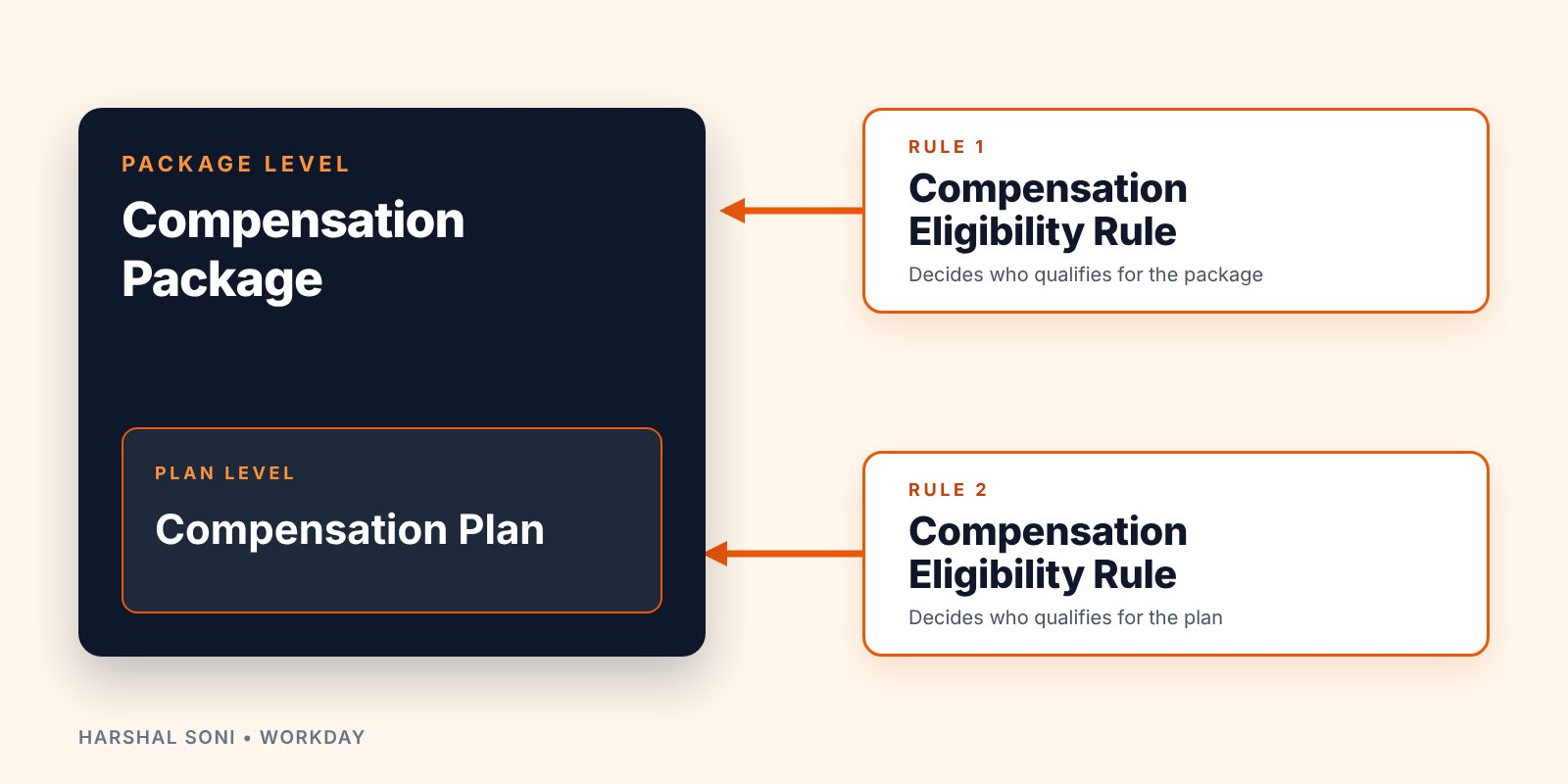
- A worker defaults into a plan only when they are eligible for the package and eligible for the plan within it.
- If a plan sits outside the package, the worker can select it manually, but it will not default.
- If a worker is not eligible for a plan, it does not default, even when the plan is in the package.
- If a worker qualifies for more than one package or grade, those components do not default. They remain selectable, but the user has to choose.
That last point causes the most surprises. Overlapping eligibility rules do not give you a “best match”. They give you nothing. The practical aim is to make every worker eligible for exactly one package and one grade and grade profile.
Where defaults come from
- Eligibility rules. The baseline. Rules assigned to the package, grades, grade profiles and plans decide what a worker qualifies for.
- The grade on a job profile. Linking a job profile to a compensation grade gives consistent grade eligibility.
- Default compensation on a position. Set up for position-based staffing.
- Default compensation on a job requisition. Used when you recruit.
- Default compensation on an offer. Set during the offer and hire process.
Which source wins
Knowing precedence is what lets you predict what a user will see:
- A job profile linked to a grade overrides the eligibility rule on that grade.
- Position compensation overrides eligibility rules.
- Requisition compensation draws from position compensation when it exists, and otherwise from eligibility rules.
- Offer compensation overrides eligibility rules, position compensation and requisition compensation. At hire, the offer is the source of truth.
How to set it up
1. Start with eligibility rules
Assign eligibility rules to the package, grades, grade profiles and plans. Package rules can differ from plan and grade rules, so design them together, and test with real worker populations to confirm each person lands in a single package and grade.
2. Decide how grades will be assigned
Either attach a grade to each job profile, which is the most consistent route, or rely on eligibility rules. If you rely on rules, leave the compensation grade profile field blank on the job profile so the two methods do not compete. This ties directly to your job architecture design.
3. Set position compensation if you need it
Assign defaults to positions with the Change Default Compensation business process. It can run on its own, or as a subprocess inside position, hiring restriction or termination processes.
4. Set requisition compensation if you recruit in Workday
Use the Requisition Compensation business process. It needs more data than position compensation does, so plan the extra effort.
5. Add offer compensation at hire
With Workday Recruiting, include the Propose Compensation Offer/Employment Agreement subprocess in the Offer or Hire business process. The agreed offer then drives compensation at hire.
6. Consider autocomplete
You can turn on autocomplete in the Propose Compensation Change or Propose Compensation Hire business process definition, so already-agreed compensation does not need to be entered again.
What this looks like in practice
- Position with eligibility rules and no job profile grade: all components default from the position, and the salary amount can still be edited.
- Requisition with eligibility rules and a job profile: most components default through the rules, and the grade can come from the job profile. Salary is entered manually unless requisition compensation exists.
- Hire with an offer: the offer drives the result. Salary and plans default from the offer and remain editable.
Practical advice
- Keep it to one package and one grade per worker. Overlap silently switches defaulting off.
- Put plans that should default inside a package. Put plans that should be selectable but never automatic outside one.
- Avoid using both position and requisition compensation. Workday does not recommend it, so pick the one that fits your hiring model.
- Document which source is authoritative at each stage. It saves long debugging sessions later.
- Test every transaction type. Hire, job change, transfer and rehire can behave differently, so test with real scenarios.
Default compensation connects directly to compensation planning, because grades and packages feed both. If you want help designing eligibility rules or reviewing your current setup, see my Workday consulting services or get in touch.
Source: Workday Education course manual, Compensation for Administrators, “Default Compensation” at doc.workday.com. Workday features and terminology can change between releases, so check current Workday documentation for your tenant.
